

What success looks like on the WhatsApp Business app
A strong start on WhatsApp Business means you have a foundation that works for you. This includes a complete and professional business profile that customers can trust, which is often their first interaction with your brand.
Success also involves using time-saving messaging tools that allow you to run your business from your phone, like greeting messages, away messages, and quick replies, to provide prompt and consistent service. Furthermore, a well-organized catalog allows customers to easily browse your products or services, while a repeatable routine for handling inquiries ensures that no customer feels ignored and every opportunity is captured.
Step 1: Set up your business profile
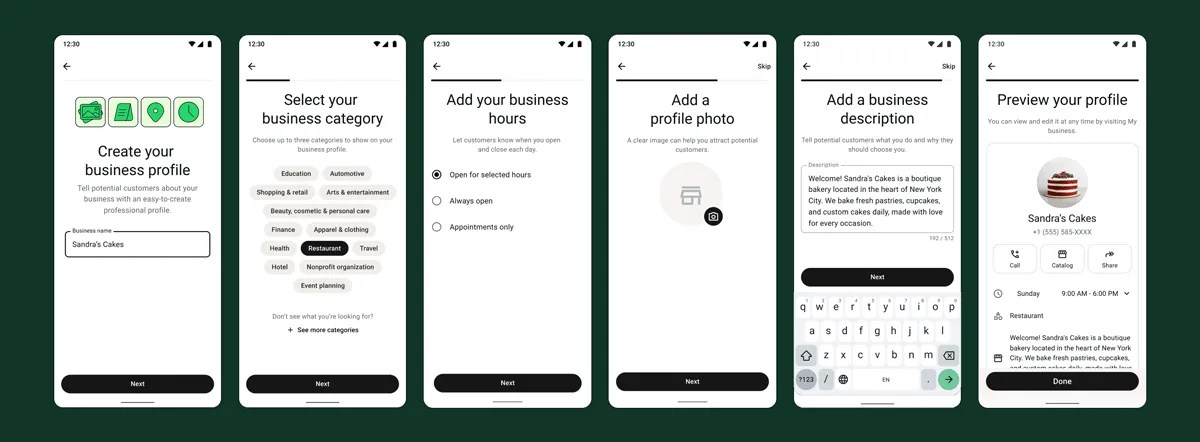
Your first step is to download the WhatsApp Business app and create your account. Here’s how to build a foundation that customers can trust from day one.
- Download the WhatsApp Business app from your phone’s app store.
- Choose and verify your business phone number.** Using a number dedicated to your business will help keep work and personal communications separate.
- Set your business name and category.** Use the name customers already know.
- Add a professional profile photo.** Use a high-contrast logo or a clear image of your storefront so customers can easily recognize you.
- Complete your business profile.** This is a crucial trust-builder. Navigate to Tools > Business profile and fill out all the fields:
- A short, specific description (e.g., “Custom cakes and pastries in São Paulo. Same-week pickup available. Message us for a quote!”)
- Business address
- Operating hours
- Email and website
Step 2: Activate your time-saving messaging tools
Greeting and away messages
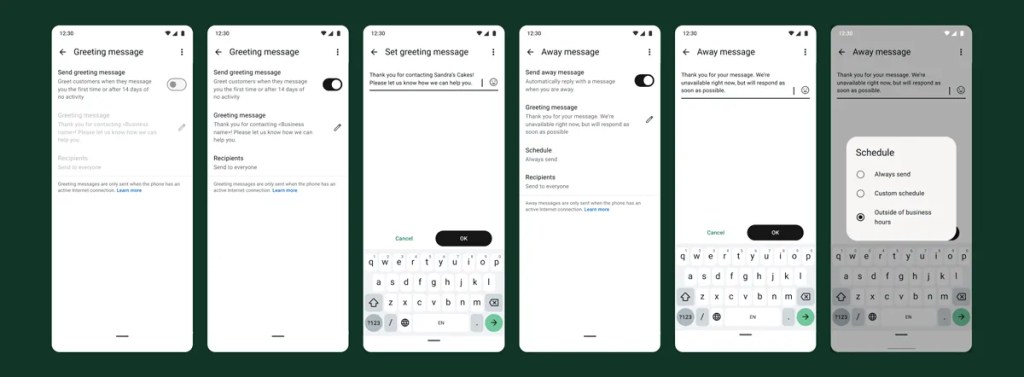
Automated messaging tools help you stay responsive, build trust, and manage customer expectations, even when you’re busy. Start by setting up a greeting message to welcome new customers and an away message to let them know when you’re offline. Always include an expected response time in your away message so customers know when they’ll hear back from you.
Quick replies
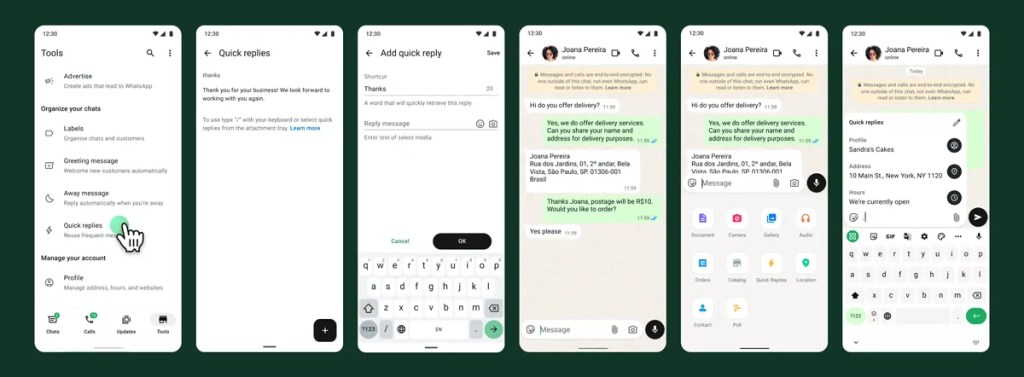
Next, create quick replies for your most frequently asked questions. If you find yourself typing the same answers about pricing, hours, or location every day, saving them as quick replies is a game-changer. You can create shortcuts for each one, like “/hours” or “/pricing,” to send a pre-written response in seconds.
Step 3: Organize your inbox so nothing gets missed
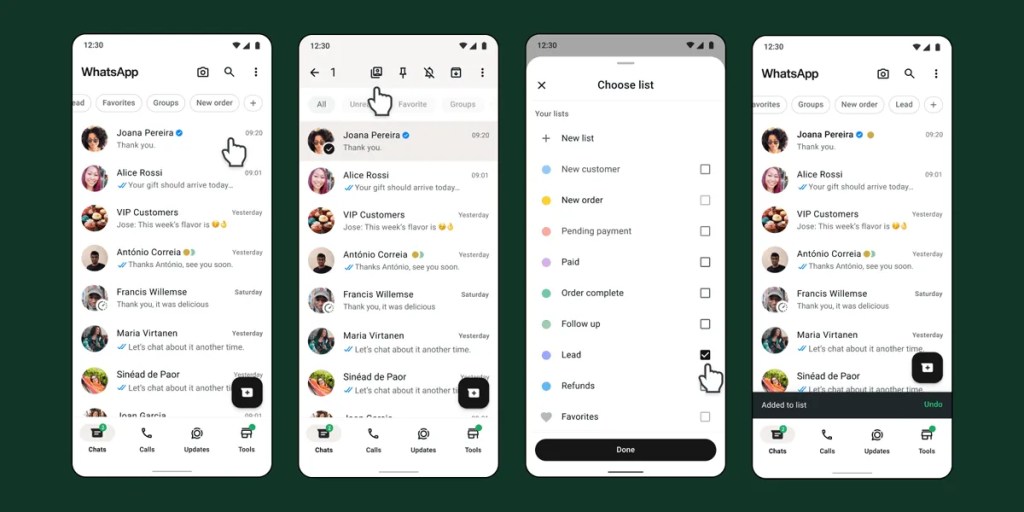
As your business grows, your inbox can become overwhelming. Use lists to help you stay organized and track where each customer is in their journey, so you can prioritize conversations and follow up effectively. Start with a simple set of lists that reflects your sales cycle.
Suggested starter lists:
- New inquiry
- Pending info
- Order in progress
- Payment pending
- Completed
- Follow up
Tip: Spend five minutes at the end of each day labeling any open chats. This simple routine ensures you start the next day with a clear, organized inbox and a plan for who to respond to first.
Step 4: Make it easy for customers to buy from you
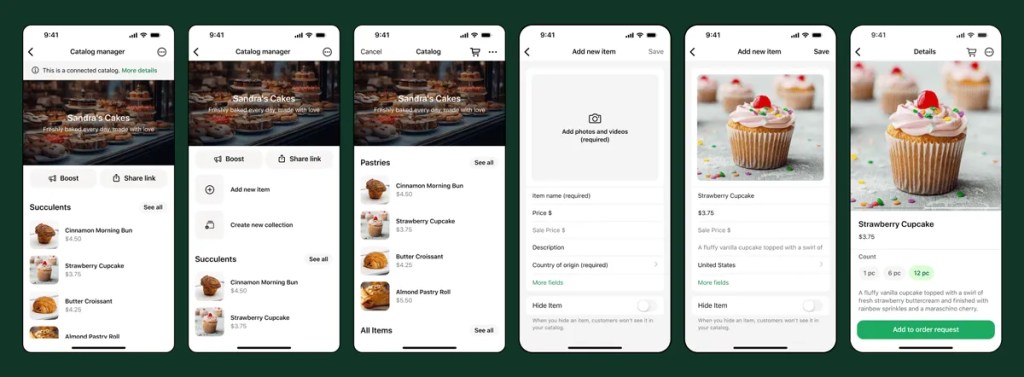
Your catalog acts as a mobile storefront, allowing customers to browse products and services directly within the app. You don’t need to list everything at once; start with your top 5–10 best-sellers or most common services. For each item, include a clear name, price, a short description, and a good photo. If you offer services, list your packages with details on what’s included to help customers self-select.
Step 5: Set up your first ad that clicks to WhatsApp
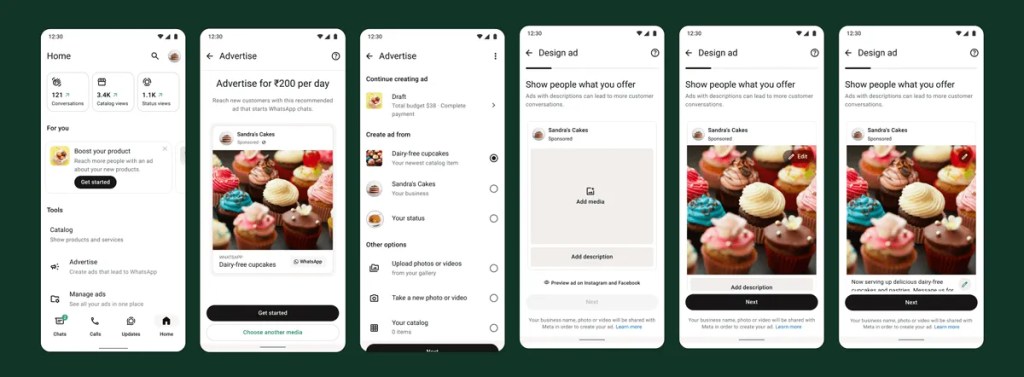
Now that you’ve created a strong business profile, it’s time to create your first ad. Ads that click to WhatsApp help business owners like you reach new audiences so you can focus on growing your business. When potential customers click your ad, they’ll open up a conversation where you can connect with them one-on-one, offer tailored product recommendations, exclusive deals, and guided support to help you close sales.
What success looks like on the WhatsApp Business app
By following these steps, you can build a professional, responsive, and organized presence on WhatsApp Business that not only improves customer satisfaction but also helps you turn more conversations into sales.
Promote your WhatsApp Business account so customers actually use it
Now that you’ve completed setup and set up an organizational system, it’s time to add your WhatsApp Business account to:
- Social profiles
- Website contact page
- Google Business profile
- Receipts / order confirmations
- In-store signage using your QR code
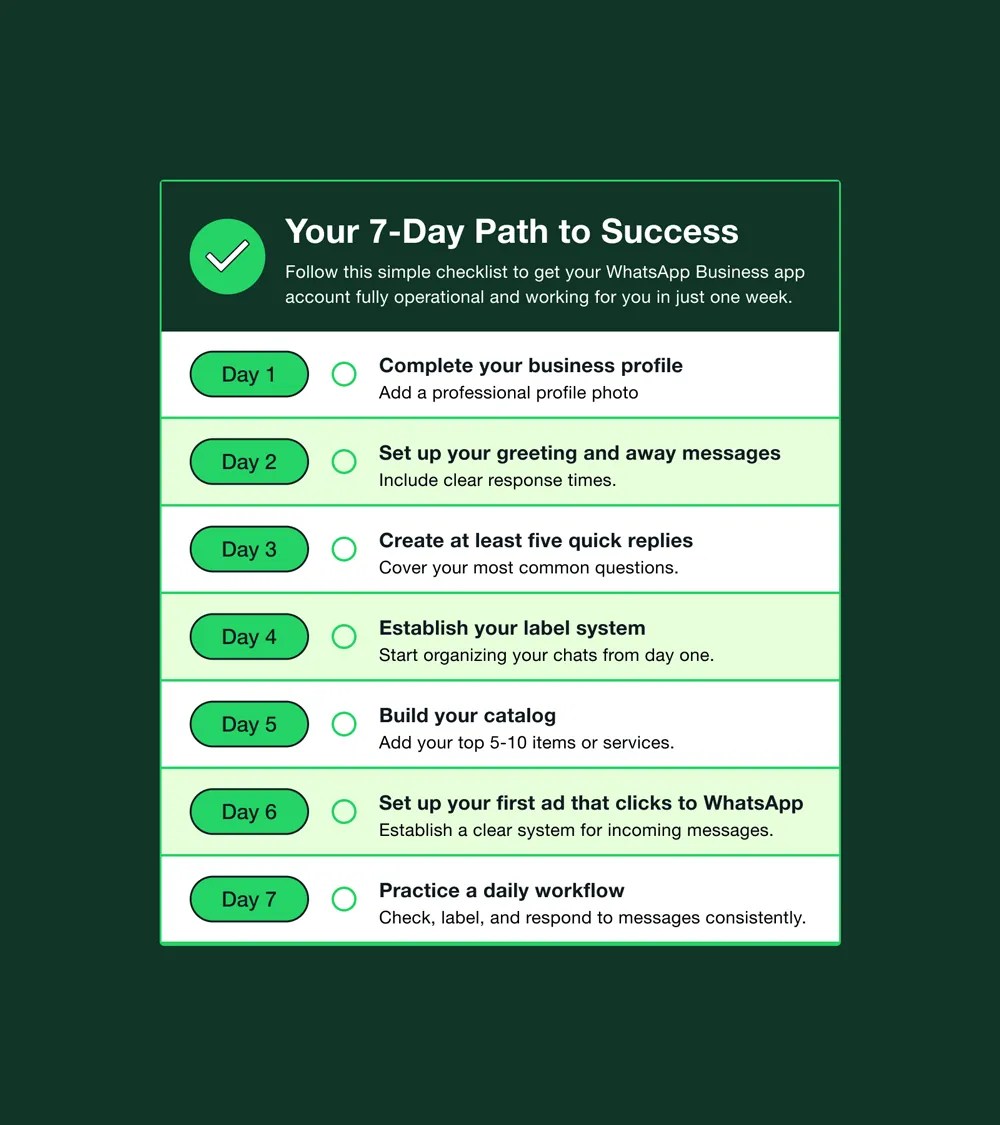
Checklist: your 7-step path to success
- Day 1: Complete your business profile and add a professional profile photo.
- Day 2: Set up your greeting and away messages with clear response times.
- Day 3: Create at least five quick replies for your most common questions.
- Day 4: Establish your label system to start organizing your chats.
- Day 5: Build your catalog with your top 5–10 items or services.
- Day 6: Set up your first ads that click to WhatsApp.
- Day 7: Implement a daily workflow of checking, labeling and responding to messages.
WhatsApp Business App Resources
Learn all the ways you can build deeper relationships and drive value for your business across the customer journey using the WhatsApp Business app.